Mydroid

Your Android phone on your Mac

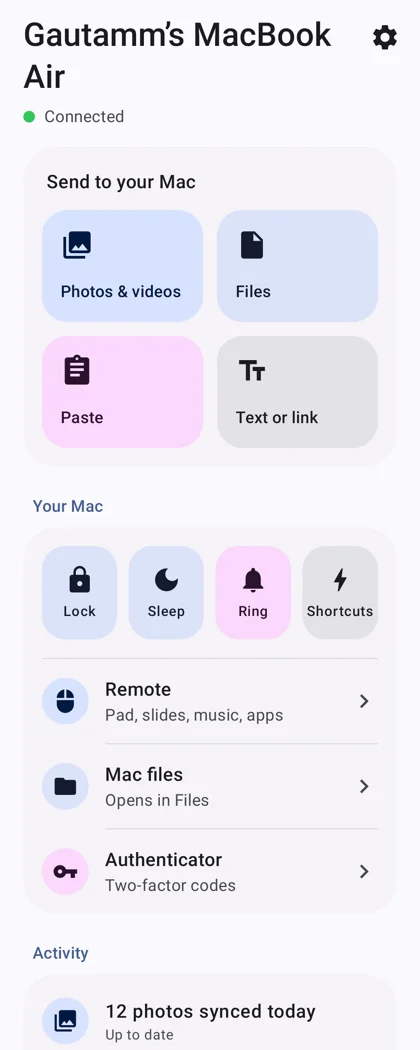
Reply to a text, answer a call, or find a photo you just took, all from your Mac. Send files and links in either direction over your own Wi‑Fi.

Free and open source. No account needed.
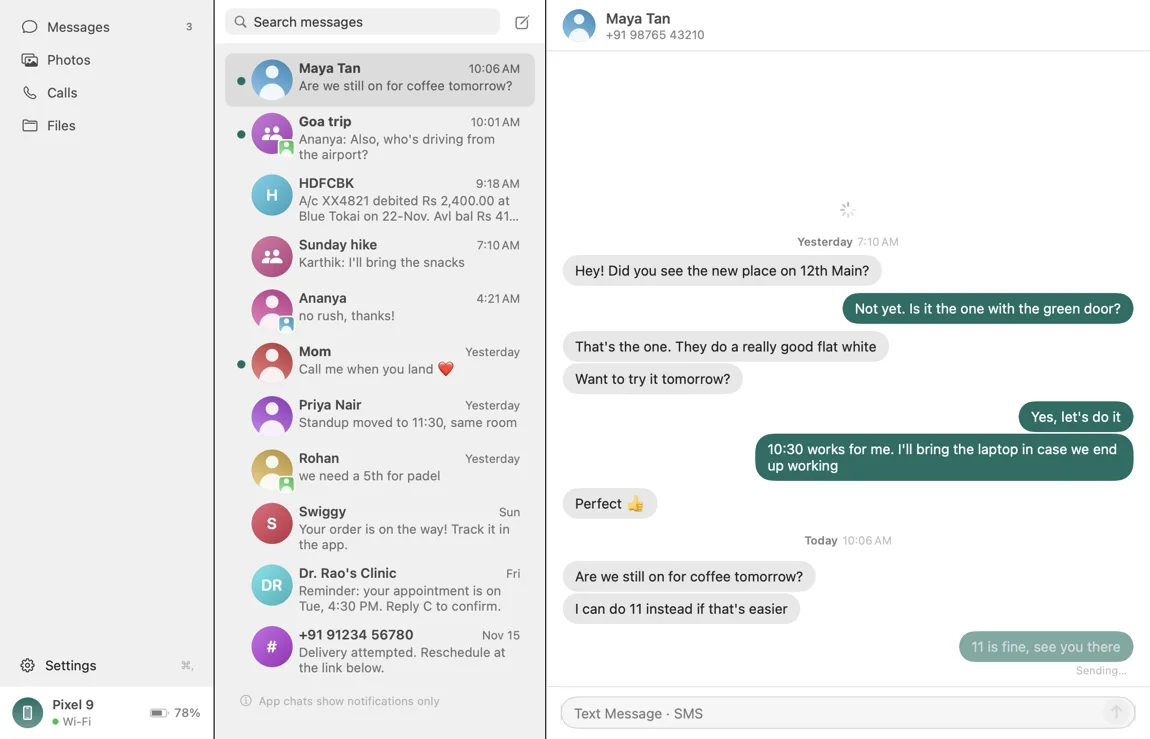
A text conversation from an Android phone open in Mydroid for Mac The linked Mac and sharing actions in Mydroid for Android

Find the photo you just took

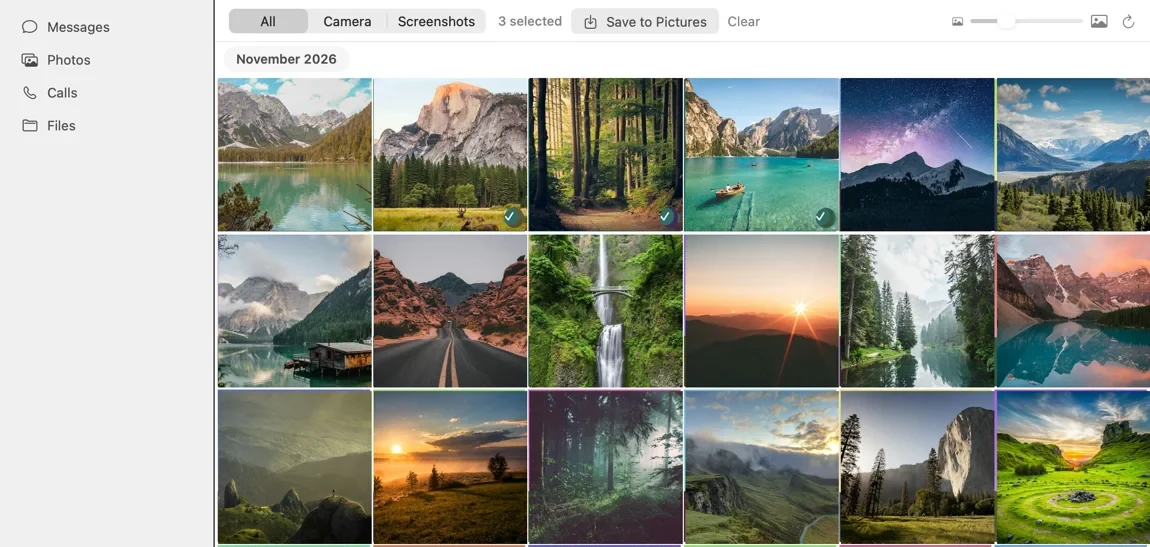
New camera photos show up in Pictures → Mydroid. Open Photos in Mydroid on your Mac when you need an older shot.
  • Save original files.
  • Import into Apple Photos if you prefer.
  • Transfers pick up again when the phone reconnects.
Set up photo sync
The Mac photo browser with a camera roll and Save to Pictures selected
Browse the camera roll and save the originals you want.

Reply while your phone stays in your pocket

Phone notifications appear on your Mac. Reply when the Android app offers it, or dismiss a notification on both devices at once.

  • Read and send SMS from the Messages window.
  • See app chats as their notifications arrive.
  • Mute individual apps or set quiet hours.
Turn on messages and notifications
The Mydroid Messages window with an SMS conversationAn Android Gmail notification on the Mac
Texts and Android app alerts both reach your Mac.

See who’s calling

Answer, decline, or start a cellular call from the Mac. With standard setup, you talk and listen on your phone.

Mac mic and speaker support is an optional setup on compatible phones. It uses Android wireless debugging and your existing adb.

Hear calls on your Mac
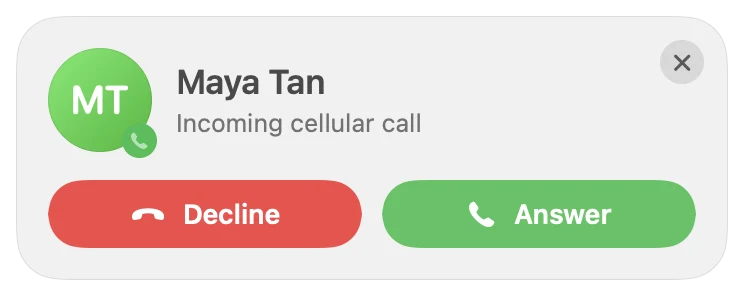
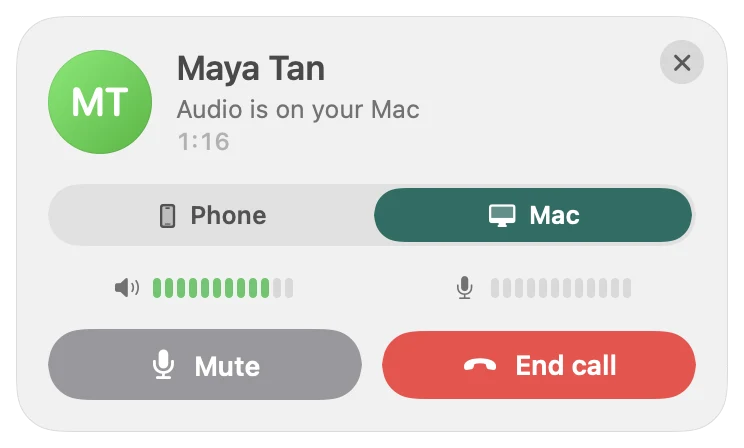
An incoming call on the Mac showing the caller and answer controlsA connected call showing Mac audio controls
The incoming-call panel and the optional Mac audio controls.

Send a file either way

Share a file to Mydroid from Android, or drop it on the menu bar to send it back. Incoming files land in Downloads.
  • Receive from Android’s Quick Share menu.
  • Open the Mac folders you’ve shared from your phone.
  • Choose which folders the phone can write to.
Move photos and files
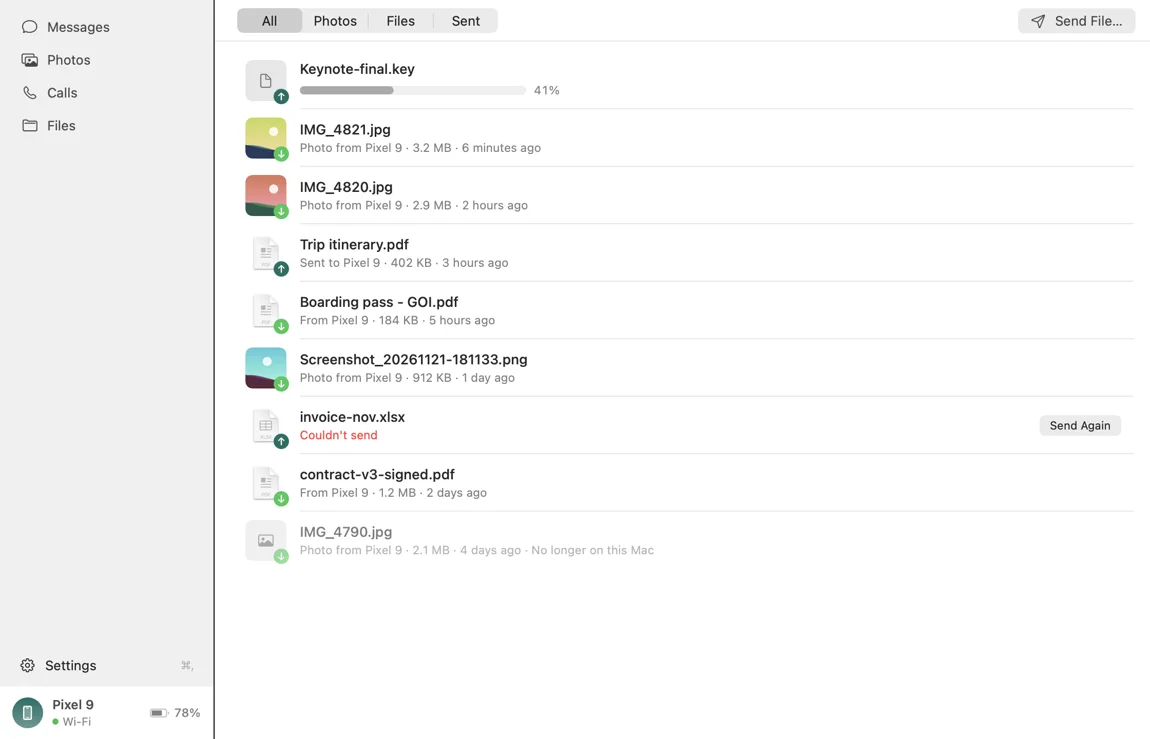
The Mac Files window with received files and transfer sizes
Find received files and see what’s still transferring.

Pick up a link on the other screen

Share a link from your phone to open it in the Mac’s browser. Send a link the other way when it’s time to leave your desk.

Turn on clipboard sharing to copy text on one device and paste on the other. You can leave it off and share individual items.

Copy text and share links

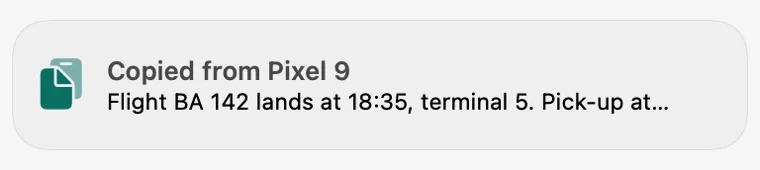
A link from Android appears on the Mac with an Open actionA Mac notification confirms text copied from the phone
Open a link from your phone, or paste text you copied there.

Control the Mac from across the room

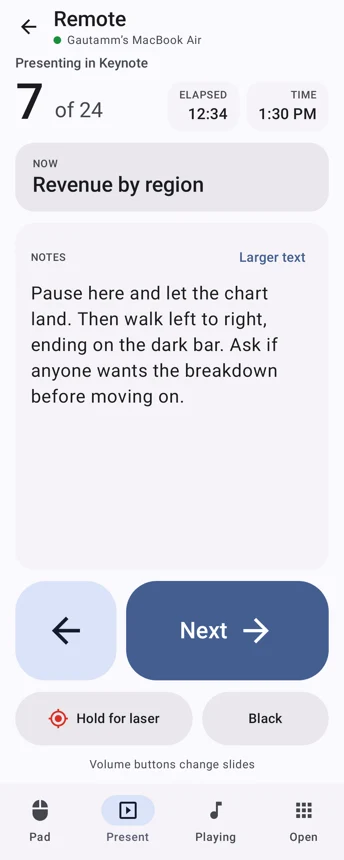
Use your phone as a trackpad, change the music, or advance a slide without standing next to the Mac.
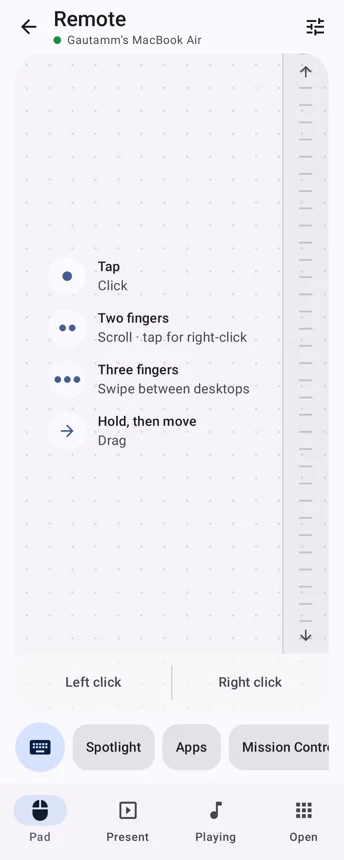
  • Type, scroll, and switch apps.
  • Present with slide controls, a timer, and Keynote speaker notes.
  • Open Mac apps and shared files from Android.
  • Lock, sleep, or ring from the phone. Turn on Walk-away lock if you want the Mac to lock automatically.
Use the remote
The Android presenter view with slide controls and a timerThe Android trackpad with keyboard and Mac shortcuts
Run a presentation or use the trackpad from your phone.

Fill a sign-in code from your phone

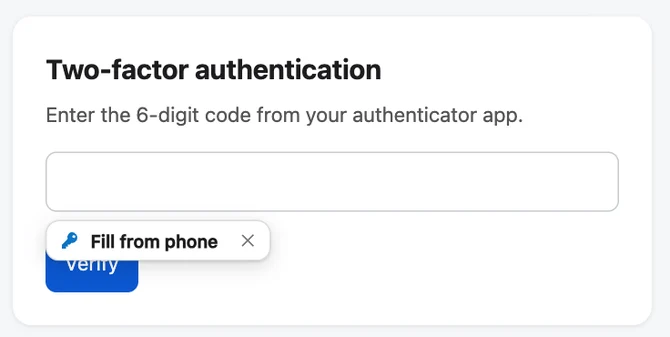
Choose Fill from phone in Chrome and approve on Android. The code appears in the sign-in form and your authenticator keys stay on the phone.
  • Choose which sites show the fill button.
  • Use ⌃⌥C when you need a code outside the extension.
  • Import accounts from Google Authenticator.
Set up Mydroid Authenticator
The Mydroid Fill from phone button below a verification-code field
The fill button appears under the verification-code field on sites you allow.

Install Mydroid, then scan to pair

1. On your Mac

Install Mydroid

Run one command in Terminal. Mydroid opens in your menu bar.

Mac install guide
3. On both devices

Pair your phone

Join the same Wi‑Fi, scan the Mac’s QR code, and choose what to sync.

Pairing guide

Want to compile the apps yourself? Build Mydroid from source.